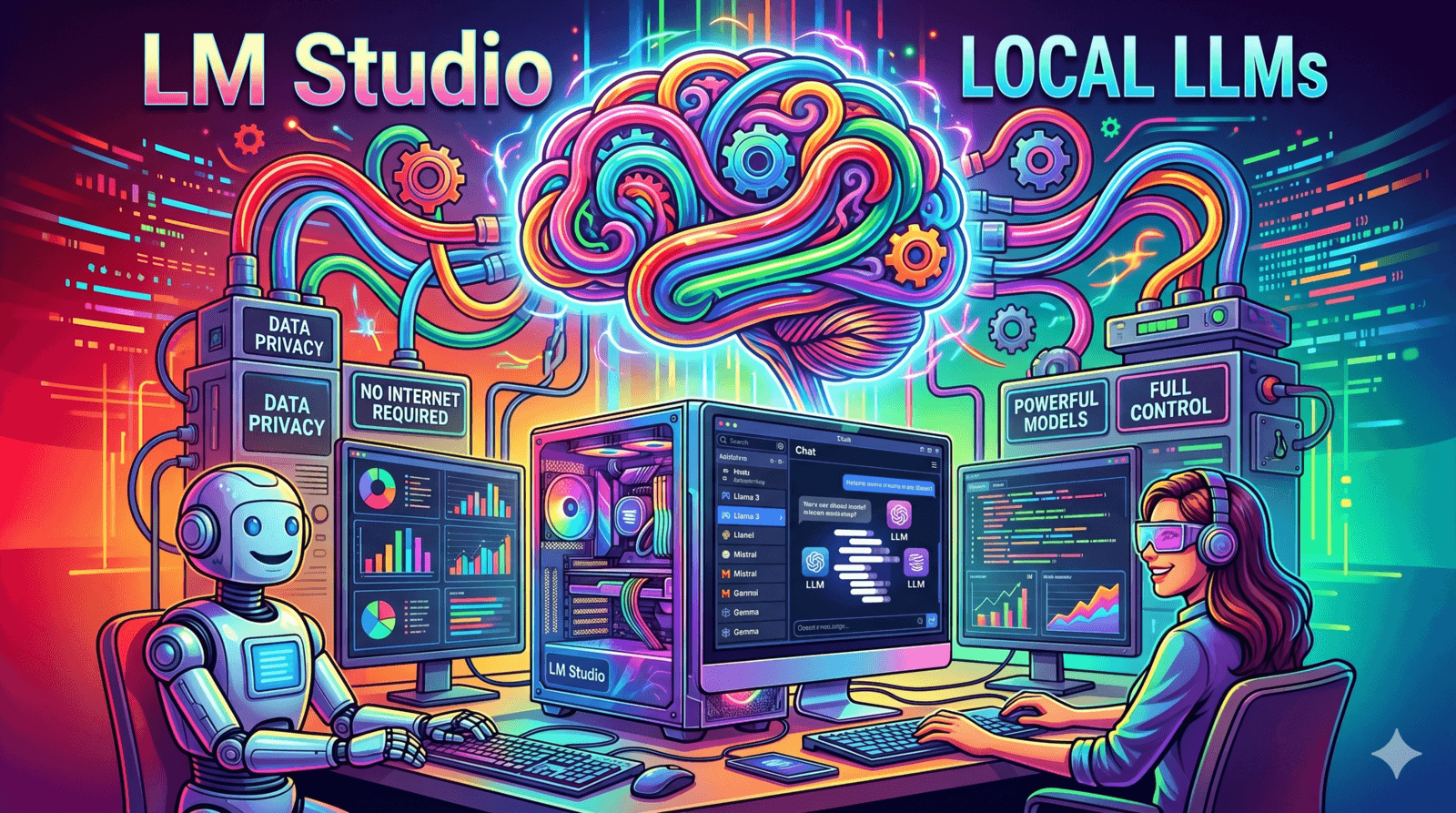
Why LM Studio is a Game-Changer for Local AI (And How to Get Started)
A beginner-friendly guide to running powerful, open-source AI models entirely offline on your own hardware using LM Studio.
The AI world moves fast, but relying on cloud giants like OpenAI or Anthropic has its downsides: subscription fees, needing an internet connection, and the lingering question of what they're actually doing with your data.
This is where LM Studio comes in. It’s basically a slick desktop app that lets you download and run powerful language models entirely offline, right on your own machine. If you want to mess around with open-weights models (like Meta's Llama, Google's Gemma, or Mistral) without wrestling with command-line interfaces, this is your entry ticket.
What Actually Makes It Good?
LM Studio manages to cram a lot of power into an interface that doesn't require a computer science degree to understand. Here’s what it brings to the table:
- In-App Model Discovery: You don't have to go digging through Hugging Face to find what you need. LM Studio has a built-in search bar that connects directly to the repository. It even checks your hardware and highlights the models that will actually run on your machine without crashing it.
- Built for GGUF: It natively runs GGUF files. If you aren't familiar, this is just an optimized format used to compress massive AI models so they can actually fit into standard consumer hardware (like your laptop's RAM).
- A Familiar Interface: Once you download a model, you get a clean, ChatGPT-style interface. You can tweak things on the fly—like the system prompt or how creative the AI gets—without having to edit configuration files.
- Local Developer Server: With one click, you can spin up a local server that acts exactly like OpenAI’s API. (Read: You can test your apps and automation scripts without getting a surprise $50 bill from OpenAI at the end of the month).
The Heavyweights: LM Studio vs. Ollama
If you’ve looked into running local AI, you've probably heard of Ollama. Both tools use the exact same underlying engine to run models, but they go about it in completely different ways. Ask around, and the consensus is pretty clear: LM Studio looks better out of the box, but developers swear by Ollama.
The Core Difference: GUI vs. CLI LM Studio gives you a visual dashboard. You click to search, click to download, and use sliders for your settings. Ollama, on the other hand, runs quietly in your terminal. You interact with it using command lines or by hooking it up to a separate frontend app.
When to use LM Studio:
- Visual Tweaking: If you want to experiment with context windows and system prompts visually, LM Studio makes it incredibly simple.
- Finding Models: Searching Hugging Face directly within the app and seeing color-coded safety indicators for whether a model will fit in your memory is a massive time-saver.
- Mac Users: LM Studio has fantastic support for Apple’s native MLX format, letting M-series Macs wring every drop of performance out of their hardware.
When to use Ollama:
- Building Apps: Because Ollama runs as a background service, it's trivial to wire into your coding workflows or Python scripts.
- Servers: Want to host a private LLM on a home server or a Linux box? Ollama can run completely headless.
Hardware Reality Check
Let's be real: running AI locally is heavy on your hardware. The golden rule? It’s all about the GPU. You can run these models on standard CPUs, but you'll be waiting a while for every word to generate.
- Apple Silicon (M-Series Macs): These are surprisingly great for local AI. Because they share memory across the whole system, LM Studio can use your massive system RAM as video memory, letting you run huge models on a laptop.
- Windows / Linux PCs: You'll want a dedicated graphics card. NVIDIA GPUs (like the RTX 30 or 40 series) are currently the gold standard here.
The AMD Ryzen Advantage
If you're rocking a modern Windows PC with an AMD chip, you're in luck. LM Studio actually has a dedicated partnership and a separate installer built specifically for AMD Ryzen AI processors and Radeon graphics cards.
Older AI tools only cared if you had a massive desktop graphics card. But if you have an AI PC with an AMD Ryzen processor, your laptop has a built-in NPU (Neural Processing Unit) designed specifically for this stuff.
When you use the AMD version of LM Studio, you get:
- Variable Graphics Memory (VGM): AMD lets you dedicate a massive chunk of your system RAM straight to your integrated GPU. You can load surprisingly large models right on a thin-and-light laptop.
- Battery Life: Running an AI on your CPU drains your battery instantly. By offloading the work to the NPU and Vulkan runtimes, you can actually use your local AI on the go without hugging a wall outlet.
How to Get Started (In Under 10 Minutes)
- Download it: Head over to lmstudio.ai and grab the installer for your system (if you're on AMD hardware, make sure to click the explicit "Download for Ryzen AI" button).
- Check your settings: Before you do anything else, click the gear icon to make sure LM Studio sees your hardware. If you have an NVIDIA card, make sure CUDA is selected. For AMD or Intel, pick Vulkan.
- Grab a model: Hit the Model Search icon. Check out the "Staff Picks" for reliable models, or search for favorites like Llama-3. Look for the green rocket icon next to a download—that means your computer can actually handle it.
- Start chatting: Go to the AI Chat tab, load the model you just downloaded from the dropdown at the top, and start typing.
Is It Worth It?
LM Studio perfectly bridges the gap between complex developer tools and everyday tech users. It strips away the intimidating terminal commands and just gives you an app that works. If you value privacy, like tinkering, or want to build things without paying cloud fees, you should absolutely have this installed.